

Resources · Claude Starter Guide
Claude, ready to work in 5 minutes. The complete guide.
Most people use Claude like ChatGPT: one question, one answer. That leaves most of it unused.
Claude does real tasks now. It works with your files and builds documents and slide decks. If you want, it starts a task on its own every Monday. Since fall 2026 the app looks different too: Chat and Cowork are now one.
After this guide, you’ll know what you need and how to set it up so Claude takes real work off your plate.
No hype. Just steps you can follow.
Part 1: The Claude system at a glance
Claude is more than a chatbot. It’s a system: two modes plus building blocks you add over time.
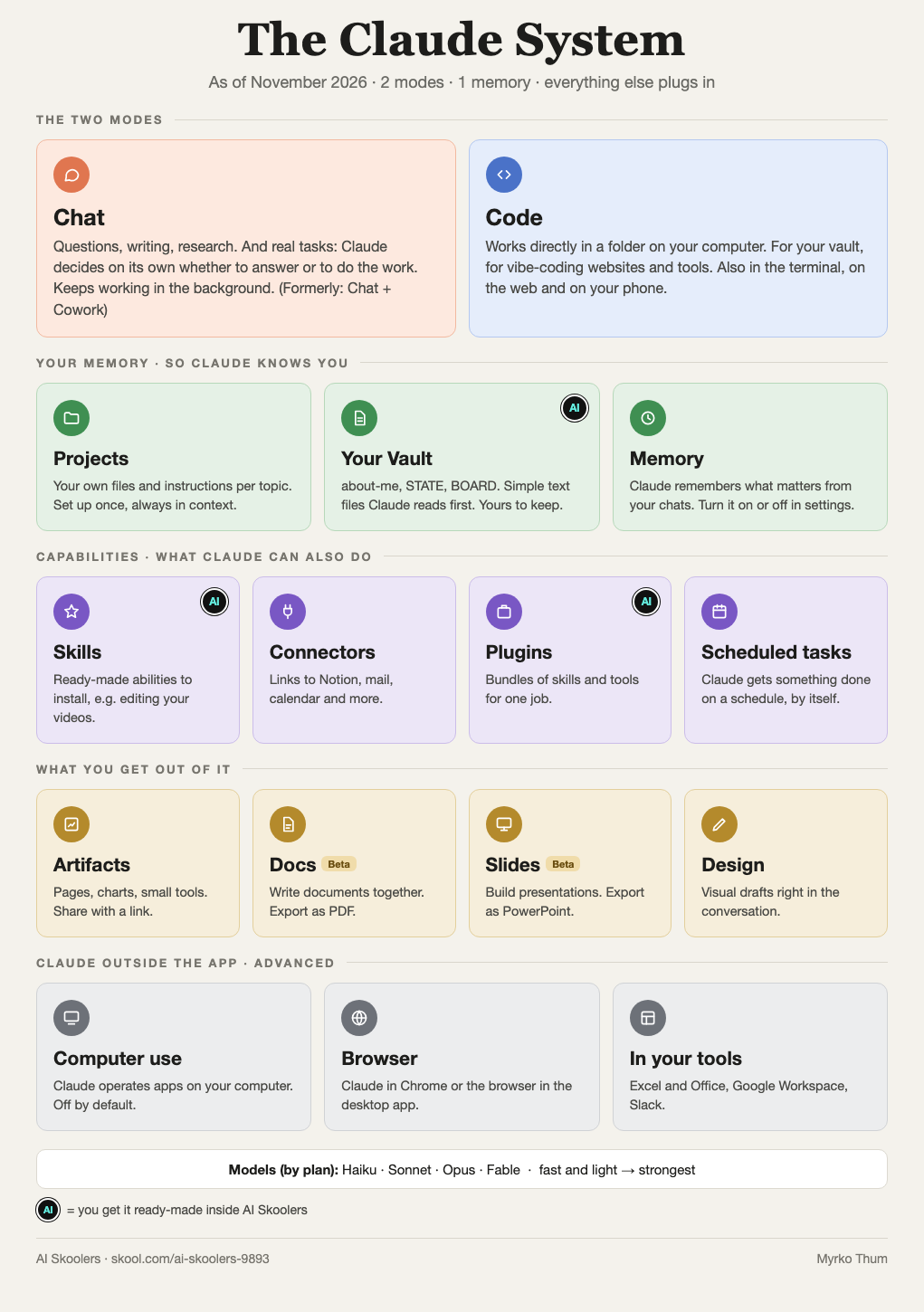
The main parts:
- Chat: questions, writing, research and real tasks. Claude figures out on its own whether an answer is enough or whether it should get something done, and it keeps working in the background if you ask it to. Everything that used to be Cowork lives here now.
- Code: Claude works directly in a folder on your computer. You need this for your vault (Part 2) and when you have Claude build web pages or small tools.
- Projects: their own files and instructions for each topic. Set up once, always in context.
- Skills: abilities you install. One example: Claude edits your videos.
- Connectors: Claude connects to Notion, email, your calendar and your other tools.
- Plugins: ready-made bundles of skills, connectors and commands for one job, like marketing or sales. One click to install.
- Scheduled tasks: Claude starts a task on a schedule by itself, for example every Monday at 8 am.
- Artifacts, Docs and Slides: results you use instead of just read. Pages, charts, documents, presentations. Docs and Slides are still in beta.
What changed: You used to choose between Chat and Cowork. Now you just type into Chat. Claude can tell whether you need an answer or a finished task. Nothing you set up before is lost.
Why Claude?
I use Claude every day for almost everything in my business: offers, pages, reels, emails, strategy. What used to take weeks now takes hours.
I notice the difference from ChatGPT most on bigger tasks. Claude asks questions before it starts, and it keeps the thread through long work.
If you only use ChatGPT today, in my view you’re working with the second-best tool.
Part 2: Set up Claude (5 minutes)
The Cowork tab is gone. The app has two modes:
- Chat for almost everything, including the tasks Cowork used to handle
- Code for working in one fixed folder on your computer
So you don’t have to think about where to start. You start in Chat.
How to set up Claude
- Go to claude.ai/download and download the desktop app.
- You need a paid plan. Pro is $20 a month. If you work with it a lot every day, take Max: $100 or $200 a month (5x or 20x the usage of Pro). Current prices for your country: claude.ai/upgrade.
- Open the app. For questions and tasks, stay in Chat.
- To work with your own files, switch to Code and pick a folder on your computer. That’s the folder Claude reads from and writes to.
- The model: for strategy and tricky analysis, pick the strongest model your plan offers. For quick questions a smaller one is enough. That saves usage.
- Leave permissions on the default setting. Then Claude asks you before it runs anything, and you see exactly what’s happening.
The right folder structure
This is where most people go wrong. They create a folder, throw everything in and wonder why Claude still sounds generic.
The structure I work with:
My Business/
├── CLAUDE.md        ← the instruction manual for Claude
├── about-me.md      ← who you are and how you write (Part 3)
├── STATE.md         ← what's true right now (decisions with dates)
├── BOARD.md         ← what needs doing (one single to-do list)
├── Clients/         ← real sentences from your clients
├── Templates/       ← your patterns and best examples
└── Output/          ← where Claude saves what it creates
CLAUDE.md and about-me.md matter most. Claude reads them first. The better these two files are, the less you have to explain.
The complete guide for this folder is here in Resources: VAULT: Obsidian + Claude as your second brain. With a ready-made CLAUDE.md to copy.
Not using Code mode? Create a project and upload the files there. You just have to keep them up to date yourself.
Part 3: Your about-me.md, the heart of your setup
This is the biggest shift in thinking.
ChatGPT trained you to write better prompts. Longer and more complicated prompts, each in a fresh chat. You have a collection of saved prompts you barely open anymore.
Forget that.
With Claude you write files, not prompts. Everything Claude needs to know about you lives once in simple .md or .txt files: your writing style, your brand, your methods, your best examples. Claude reads them before it answers. (In ChatGPT, Projects get you closest to this.)
The result: the text sounds like you.
How to create your about-me.md
In Code mode, start a new chat in your folder and give Claude this prompt:
You're creating my about-me.md for my folder.
Claude reads this file at the start of every task.
It has to be precise, under 2,000 words.

Your task: interview me with 20 questions,
one question at a time. Then condense my answers
into a compact about-me.md and save it in the folder.

Start with the first question now.
What Claude will ask you, and what matters:
- Who you are: your role and your business
- How you work: your tools and what “done” means to you
- What good work looks like: your best examples and what bugs you about AI writing
- Your voice: how you write and which phrases you can’t stand
Important: Keep your about-me.md under 2,000 words. A file that’s too long eats context. Lots of noise, little signal.
Part 4: The universal starting prompt
There’s no magic prompt. No “Act as a senior marketing strategist with 20 years of experience” will solve your task. Those formulas existed because earlier models had no context. With your files, Claude has it.
The only template you still need:
I want to achieve [TASK] so that [WHAT SUCCESS LOOKS LIKE].

Read my files completely before you answer.

Do NOT start working on it yet. First ask me clarifying
questions, one at a time, so we can find the best
approach together.

Only start once we agree.
The most important sentence: “Do NOT start working on it yet.”
That way Claude understands first and produces second. Claude asks its questions, you answer them, then the work begins. The result is almost always better than diving straight in.
Part 5: Chat, Project, Code: use your usage wisely
Every interaction with Claude uses tokens. That’s the currency Claude reads and answers with. The more context Claude has to process, like files or long chats, the more it uses. You notice it in the speed and in your usage limit.
The most common mistake: starting every little thing with full context when a quick question would have done the job.
Rule of thumb: think first, then execute
Stage 1: Chat without a project. Develop ideas and test approaches. Without files and heavy context, this is fast and light. This is where you’re allowed to play around.
Stage 2: Create a project. Once it’s clear what you’re working on, create a project. Write your instructions down cleanly once and add the right files. That half hour pays off in every chat after.
Stage 3: Execute. Inside the project, give the task. Claude already knows who you are and what the goal is. You prompt once and get a result. If it involves files on your computer, you work in Code mode.
When to use what?
| Situation | Use |
|---|---|
| Quick question or a chart | Chat |
| Research or testing an idea | Chat |
| Creating a document or presentation | Chat (Docs, Slides) |
| Recurring work with context | Project |
| Getting something done on a schedule | Scheduled task |
| Working with files on your computer | Code |
| Building a web page or small tool | Code |
| Connecting Claude to your tools | Connectors |
Save usage: practical tips
Keep your about-me.md under 2,000 words. A self-description that’s too long costs context on every task. Trim it regularly: keep the patterns, cut the raw text.
Not every task needs the strongest model. For quick questions and simple texts, a smaller model is enough. It’s faster and uses less. Save the strongest one for strategy and tasks where Claude really has to think.
New chat instead of an endless chat. If a chat has gotten very long, start a new one. Old chats cost context without helping. Save the result as a file and start fresh.
Remember: Chat without a project is your sketchbook. The project is your workshop. Sketch first, then build.
Part 6: Projects and scheduled tasks: Claude keeps working, even without you
For a long time this was the biggest weak spot: every new chat started empty. You explained yourself again and uploaded the same files again.
That’s over once you use these:
- Projects: one place per topic for your files and chats. You set the instructions once.
- Memory: Claude can remember important things from your chats. You turn this on or off in the settings.
- Scheduled tasks: you say once, “Every Monday: summarize my numbers for the week,” and from then on Claude starts it by itself. Tasks keep running even when you close your laptop.
Three projects that make sense right away
Content production: one project for all your content. Claude knows your voice and your past posts. Every new post builds on them.
Client work: one project per client. Claude knows the background and everything you’ve done so far. No more copying from old chats.
Strategy: one project for your business. Claude knows your goals and every decision you’ve made. Every new question has the full context.
Part 7: What Claude can actually do for you
Landing pages and copy: Claude reads your methods, your best-performing copy and your clients’ feedback. Then it writes copy that sounds like you. This only works with good files. The quality of your copy depends directly on the quality of your context files.
Documents and presentations (beta): Claude writes a document with you or builds slides for you. You edit right inside it and export as PDF or PowerPoint. A first prompt to try:
Turn my notes into an 8-slide presentation for [OCCASION].Interactive charts: just type into the chat:
Create an interactive chart about [TOPIC].If Claude gives you code instead of a chart, add: “No code. Just the interactive chart.” You share the result by link with your team or your clients.
Excel and spreadsheets: Claude in Excel understands formulas and shows you every change before it makes it. A first prompt to try:
Give me a summary of every tab in this spreadsheet.Computer use and browser: Claude can operate apps on your computer and work in the browser. It can open pages and fill out forms, or do research while you do something else. You turn on computer use in the desktop app’s settings. It’s off by default. For the browser there’s the Claude in Chrome extension, or the browser built into the desktop app.
Important: Don’t give Claude access to sensitive accounts with computer use. Use it for research and repetitive workflows. Not for banking or anything like it.
Part 8: Avoid performative productivity
AI takes away the friction of starting. That’s great. But it also takes away the friction of stopping, and that’s dangerous. People who use AI a lot often work more than before. Faster, but not always on the right things.
The pattern: you start a task. The AI delivers fast. You start the next one. And the one after that. By evening you’ve produced a lot, and none of it moved your business forward.
This is called performative productivity: busywork that feels like progress but isn’t.
Rule 1: Write one sentence before you prompt. What problem are you solving right now? If you can’t say it in one sentence, the AI produces noise. And you spend the evening polishing that noise.
Rule 2: Cut 3 tasks for every new one AI makes possible. With AI, adding is easy. Nobody teaches you how to leave things out. Knowing what you won’t do anymore gets you further than any prompt.
Rule 3: Set a last prompt for the day. After 8 pm, you’re done. Sounds trivial. If you regularly do “one last thing” at midnight, the problem is boundaries, and AI won’t fix that.
The real question: what do you do with the time you win back?
Part 9: Your action plan for today (30 minutes)
Do this today, in this order:
- 5 min: Download the Claude desktop app: claude.ai/download
- 2 min: Create a folder:
My Businesswith the files from Part 2 - 15 min: Have Claude create your about-me.md. Claude interviews you, you answer honestly. Quality over length.
- 3 min: Leave permissions on default and pick the strongest model for your first task
- 5 min: Try one real task with the starting prompt from Part 4. Pick something that’s due this week anyway. “Write me something” doesn’t count.
After that: set up your vault. That’s the biggest jump.
Claude makes you faster. More important: it takes the execution off your plate and gives you time for what AI can’t do: judging what matters and making the call.
AI does 80% of the work. You stay 100% you.
Who’s behind this guide
I’m Myrko Thum, a sales funnel expert with more than 550 funnel projects. I use Claude every day in my business. This guide gets updated as Claude evolves. Last updated: November 2026.
FAQ
Do I need a paid plan?
Yes. For the desktop app with Code mode and Projects you need at least Pro, which is $20 a month. Current prices for your country are at claude.ai/upgrade.
What happened to Cowork?
Cowork now lives inside Chat. The app has only two modes left, Chat and Code. Everything else you set up, like Projects and Skills, is still there.
Do I need to know how to code to use Code mode?
No. Code just means Claude works in a folder on your computer. You write what you want in plain English.
What's the most important first step?
Your about-me.md. It tells Claude who you are and how you write. After that, the text sounds like you.